QR Manager creates dynamic QR codes on your Webflow site. Each code encodes a permanent address of your site, like yoursite.com/qr/menu. That page reads the current destination from your CMS and sends the visitor there, so you can change where a printed code goes at any time.
1. Install and connect
- Install QR Manager from the Webflow Marketplace, or use this install link.
- On the Webflow authorization screen, choose your site and click Authorize.
- Open the Designer, open the Apps panel in the left toolbar and launch QR Manager.
Only the person who installs the app authorizes it. Teammates working on the same site simply open the app.
2. Setup assistant
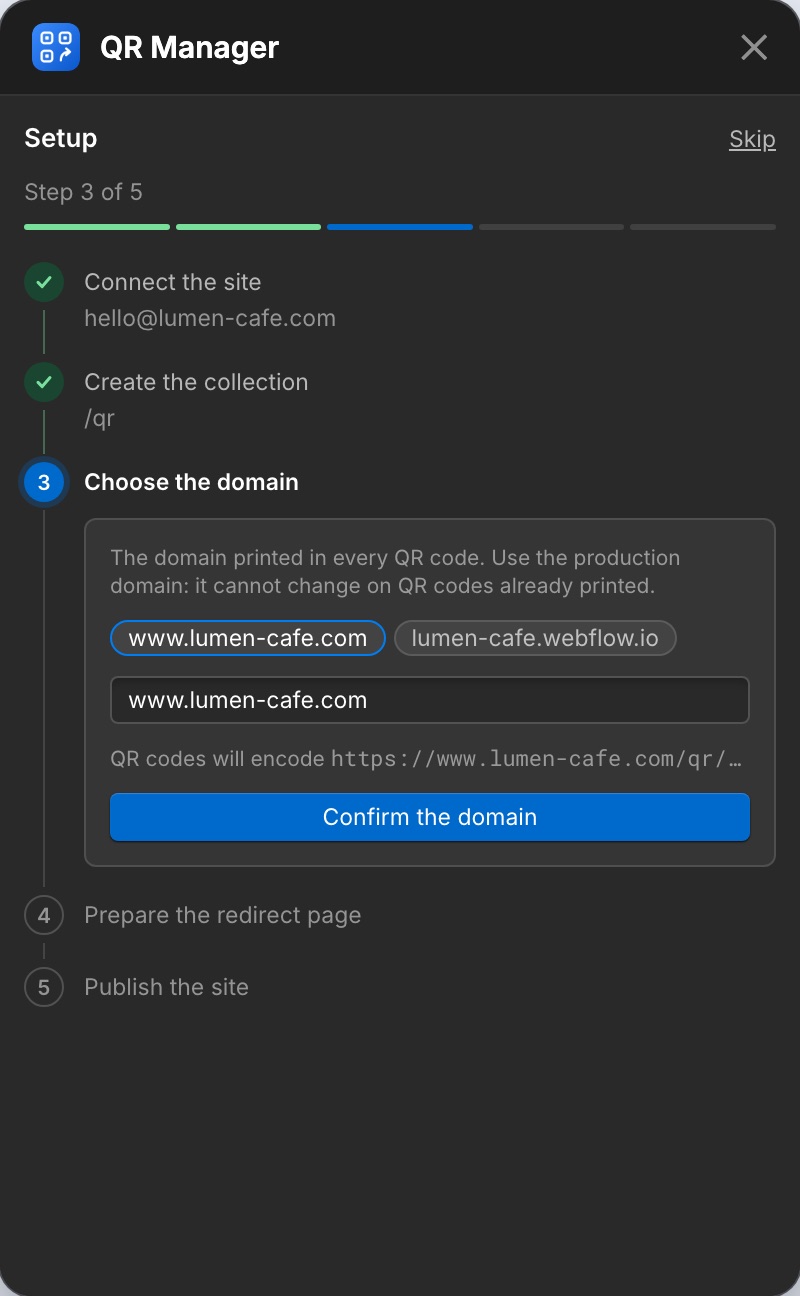
The first time you open the app on a site, an assistant guides you through five steps. Each step unlocks when the previous one is done, and the app checks them by itself.
- Connect the site: authorize the app in the tab that opens. The connection is detected automatically.
- Create the collection: one click creates the “QR Codes” CMS collection, or adds missing fields to an existing one.
- Choose the domain printed in your codes. Use your production domain: it cannot change once printed.
- Prepare the redirect page: the app configures the collection template page and builds the redirect card. If the page is not found right after the collection was created, reload the Designer: the app checks again by itself.
- Publish the site with the Publish button of the Designer. The app detects the new publish.
If teammates already use the app on the site, the assistant is skipped. Open it again anytime from Settings → Setup assistant.
3. Create a QR code
- In the QR codes tab, click the round + button at the bottom right.
- Enter a Name (for you only). The Slug is filled from it: it becomes the address
/qr/slugprinted in the code. - Enter the Destination URL, where visitors should land today.
- Optionally add a Category and turn on UTM parameters (see UTM tracking).
- Once the address is valid, the preview appears with the Style choices right under it.
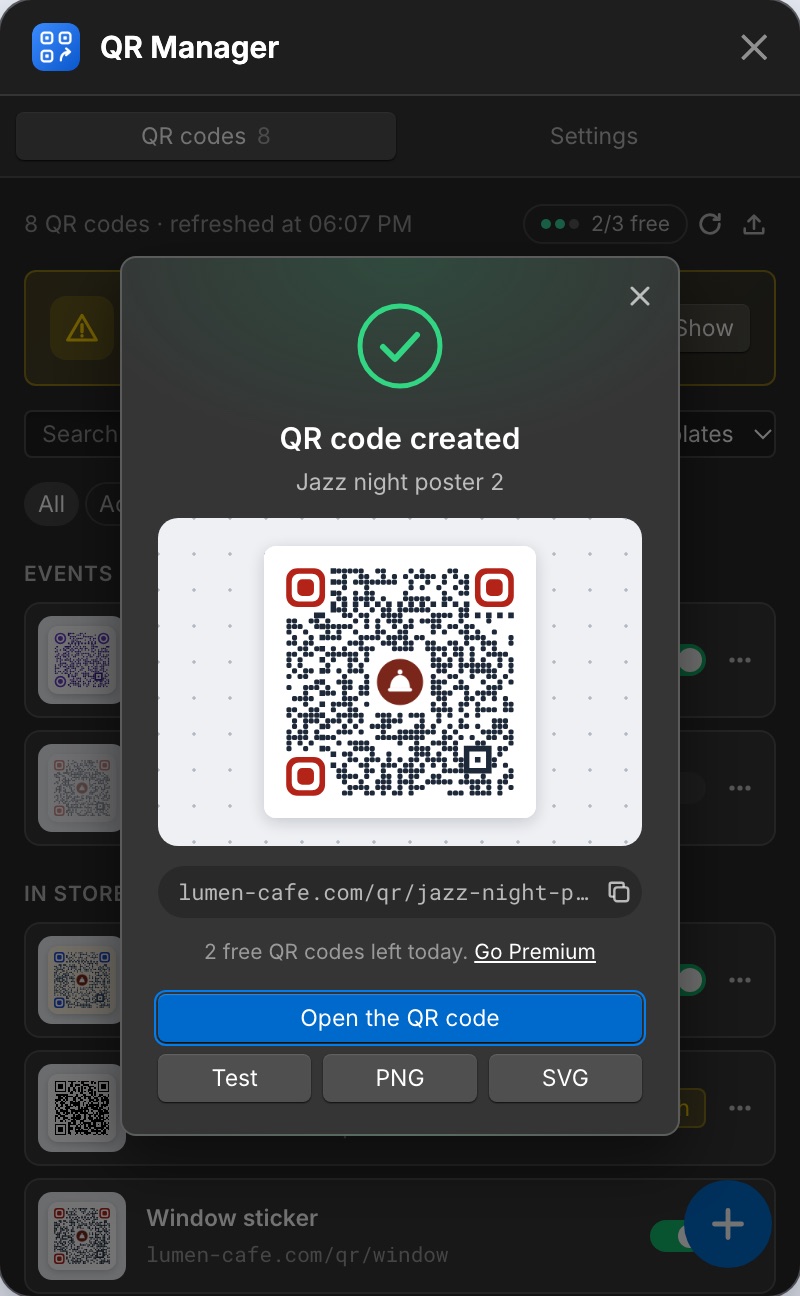
- Click Create QR code. The code is saved in your CMS and published.
A dialog then lets you Open the QR code, copy its address, Test it, or download the code as PNG (2048 px, for print and documents) or SVG (vector, for designers and large formats).
4. Manage your codes
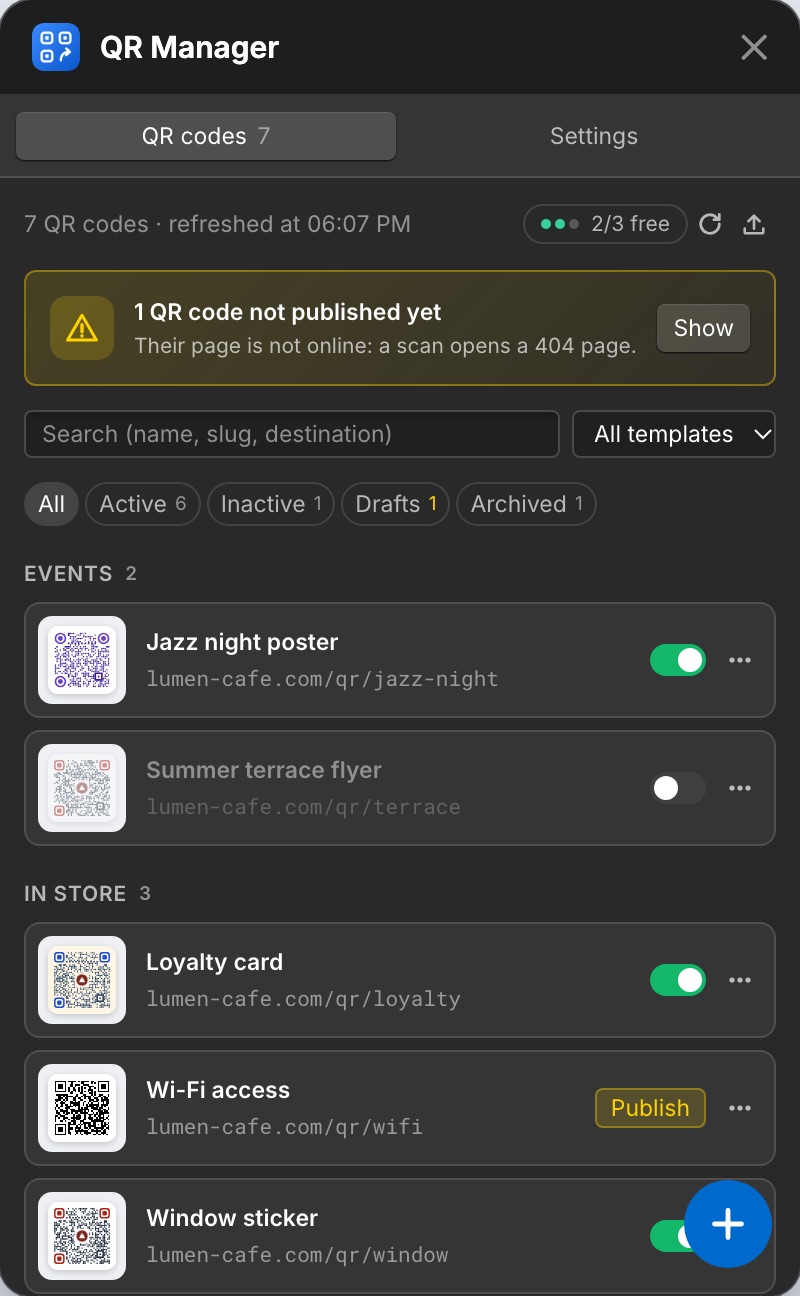
The QR codes tab lists every code with the address printed in it (yoursite.com/qr/slug). Codes are grouped by category when you use categories. The round + button at the bottom creates a new code.
- Search by name, slug, destination or category, and filter by status or by template.
- The switch pauses or resumes a code. A paused code shows an “inactive” message instead of redirecting.
- The ⋯ menu offers: Edit, Duplicate, Test the link, Copy URL, Download PNG / SVG, Archive and Delete.
- While an action runs, the row says what is happening (“Activating and publishing…”).
A code's page
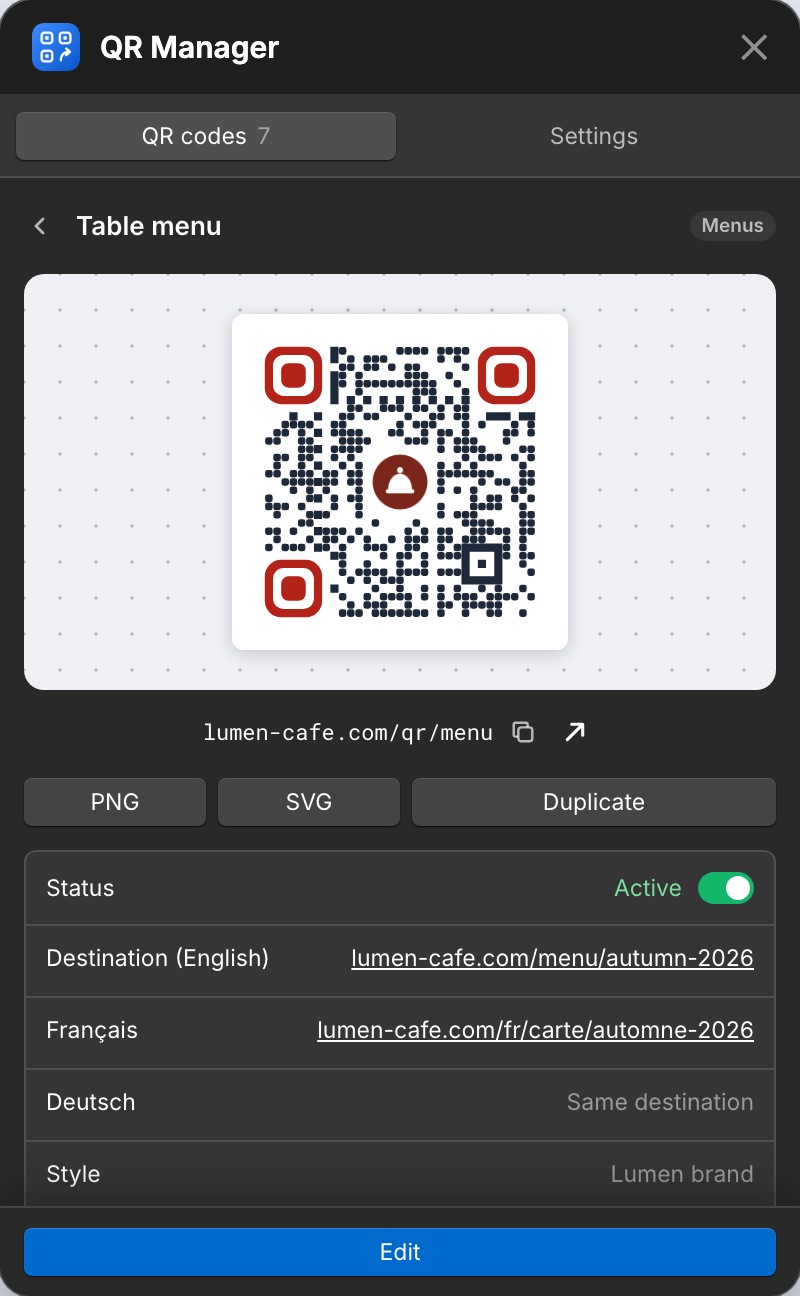
Click a code to open its page. Nothing changes until you click Edit. The page shows the code, its address (copy, test), the downloads, and every detail: status, destination in each language, UTM parameters, style, category, and who generated the image and when.
Not published yet
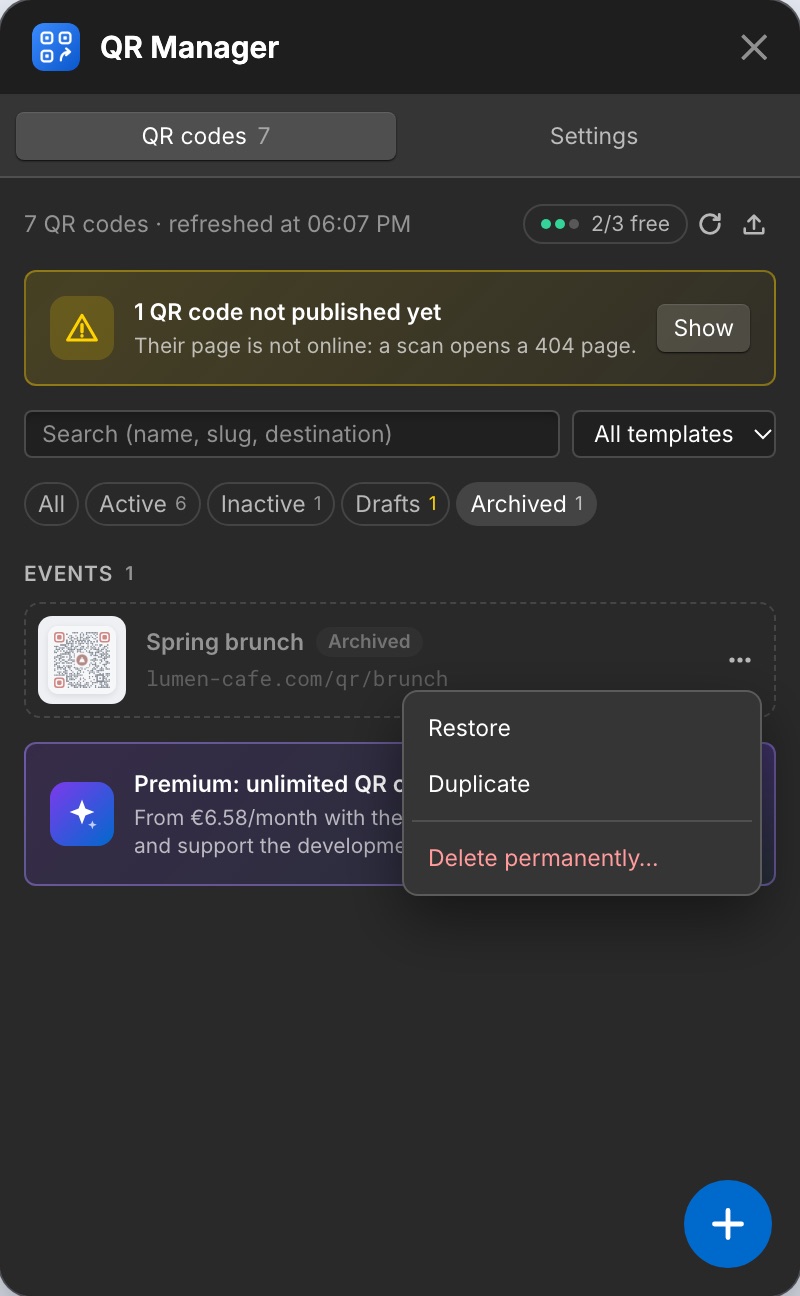
A code saved but not published opens a 404 page when scanned. The list flags it with a yellow stripe and aPublish button on the row, and a banner counts these codes.
Categories
Give a code a Category in its form (Menus, Events, Packaging…): existing categories are suggested. Categories are stored in a “Category” field of your CMS collection, added automatically the first time you use one.
Duplicate
Opens the new code form with a copy of the code (name “(copy)”, slug slug-2, destinations, style, category). Nothing is created until you click Create QR code.
Archive, restore, delete
- Archive takes the code's page off your live site but keeps the code. It moves to the Archived filter.
- Restore brings it back and publishes it again, with the same address.
- Delete removes the CMS item for good. Printed copies will open a 404 page.
Outdated image means the image stored in the CMS no longer matches the domain or the template:Regenerate in the banner fixes it. Printed codes keep working either way.
5. Customer area and statistics
From the customer area
Everything can also be managed from your customer area, without opening the Designer: create, edit, turn on or off, archive or delete a QR code, download its images, follow the statistics and manage the subscription. Changes are written to your site's CMS and published right away, just like from the extension.
Scan statistics
- Every scan of a published code is counted: the total shows in the list and on the code's page, on every plan.
- With Premium: scans per day over 30 days, 90 days or a year, by country and by device type (mobile, tablet, desktop).
- Counting is anonymous: no cookie, nothing stored on the visitor's device, no IP address kept. Only totals per day, country and device are recorded (13 months at most). Robots and link previews are not counted.
- To turn it off: Settings → Count scans. The setting applies to the whole site.
6. Styles and templates
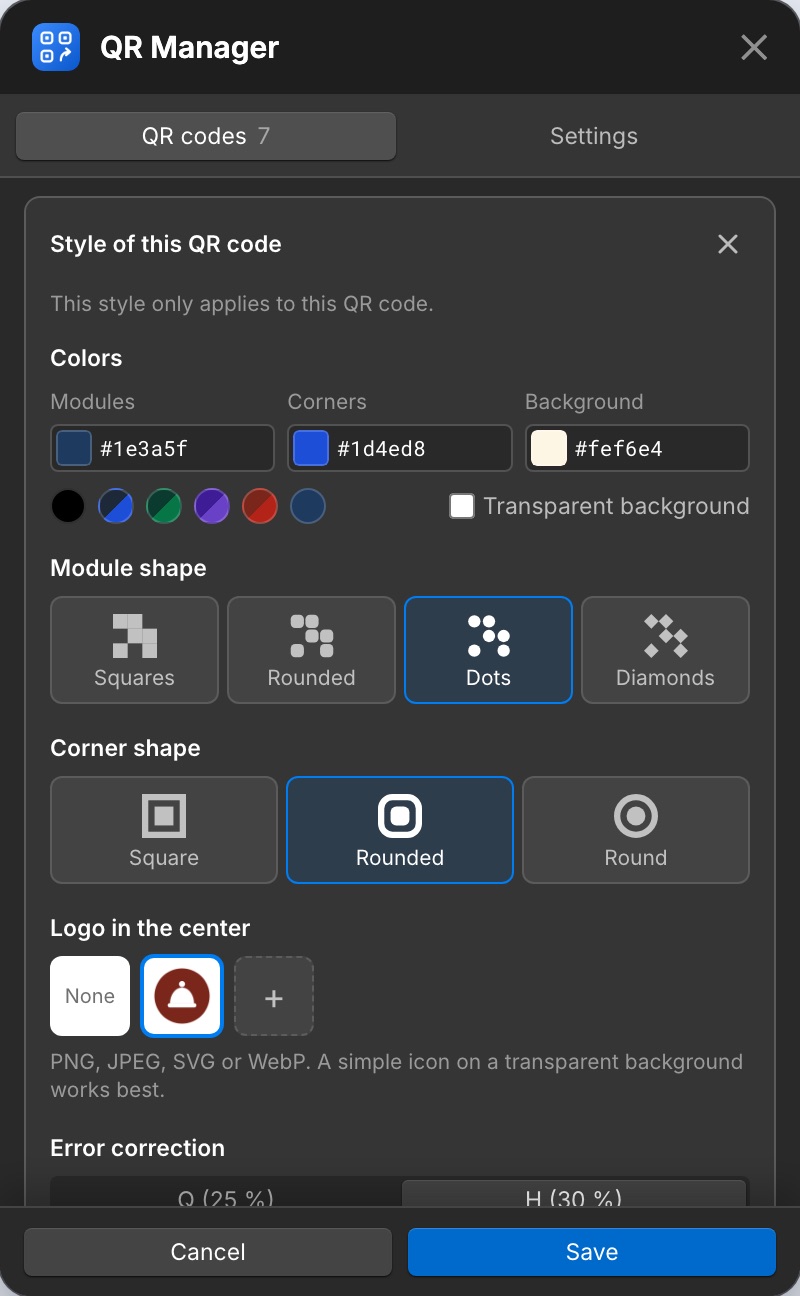
- Options: colors of the modules, corners and background (or transparent), module shape (square, rounded, dots, diamonds), corner shape (square, rounded, round), a logo in the center and the error correction level (raised to H with a logo).
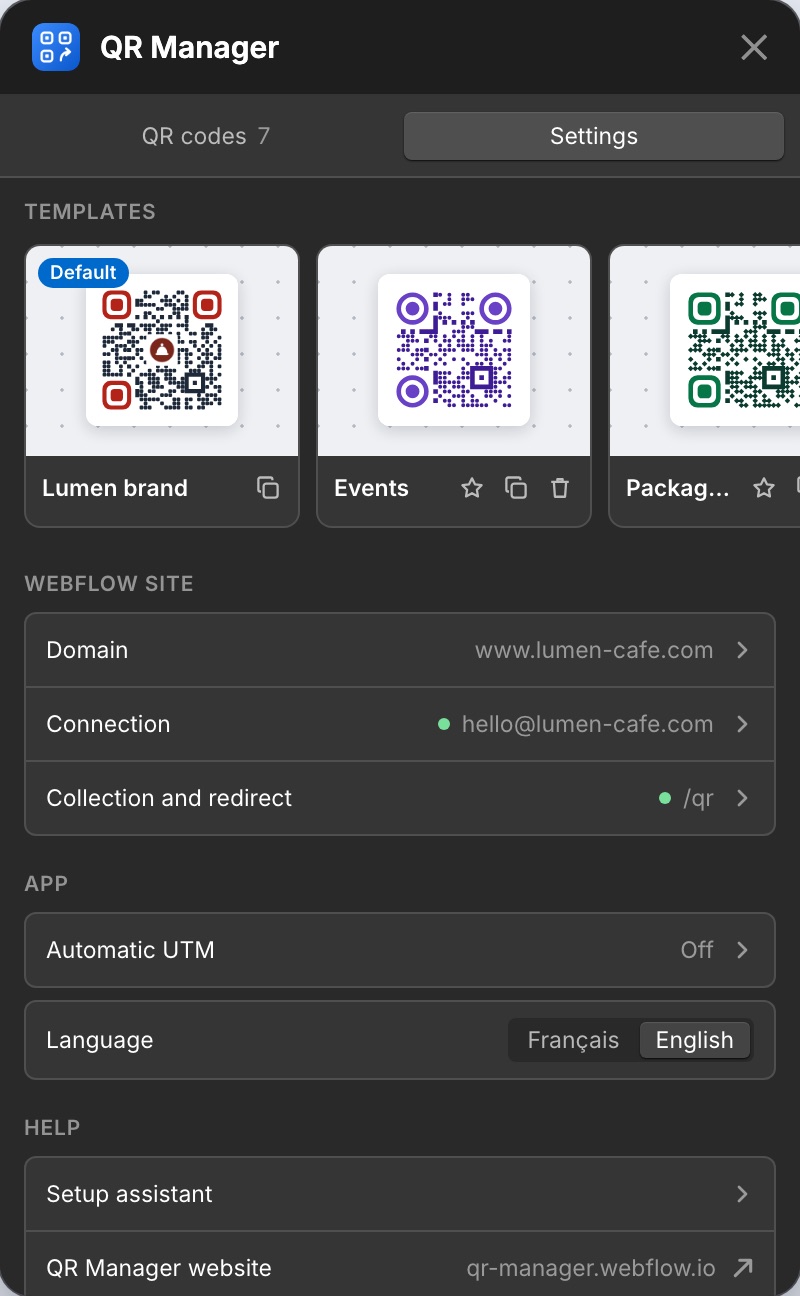
- Templates (Settings → Templates) are reusable styles shared with everyone on the site. Changes save automatically. The default template is used by new codes.
- In the form, pick a template or click Customize to give one code its own style. Save as template turns it into a template.
- When a template changes, its codes are marked Outdated image: Regenerate updates them in one click.
- The app warns you about colors that make a code hard to scan. Keep a strong contrast and test a print before a large run.
7. UTM tracking
UTM parameters are added to the destination so visits coming from a scan appear as their own campaign in Google Analytics, Webflow Analytics or any analytics tool. QR Manager itself tracks nothing.
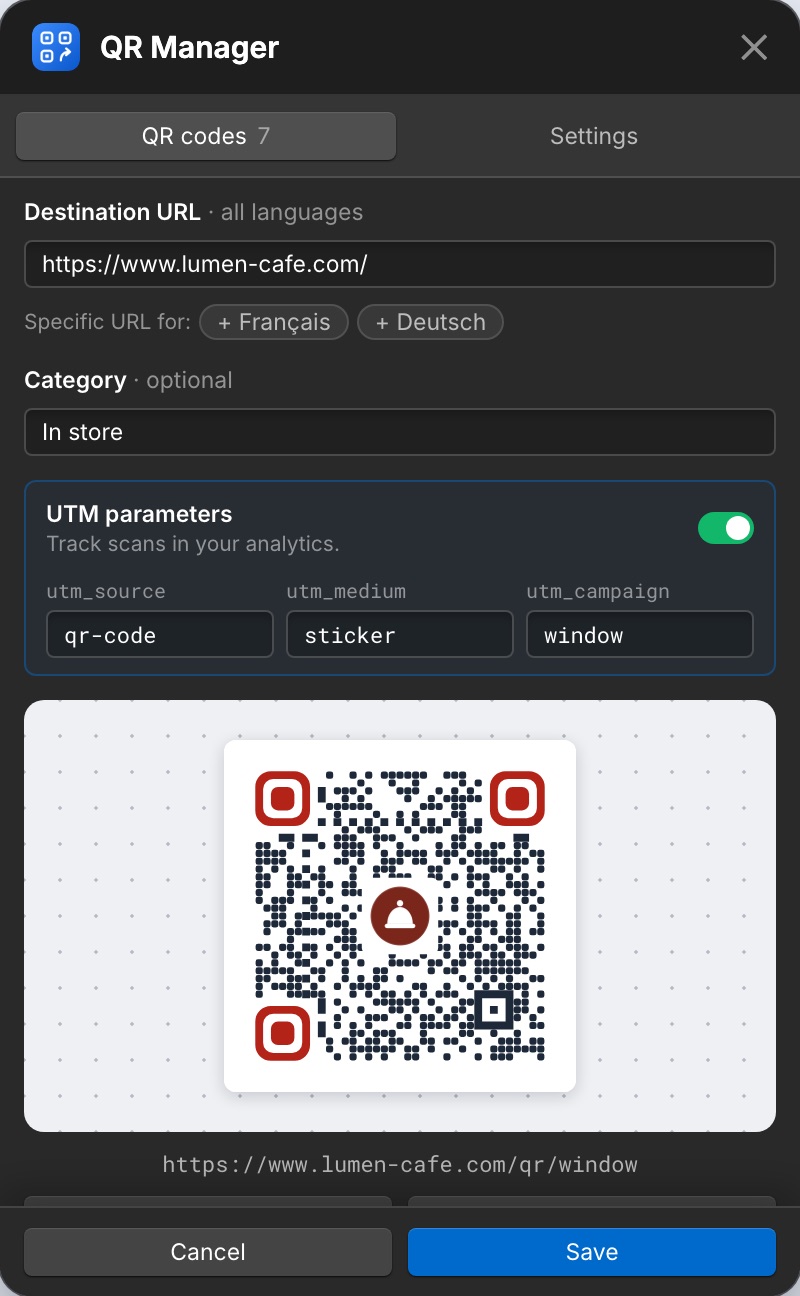
- In the form, turn on UTM parameters and set
utm_source,utm_mediumandutm_campaign. utm_campaignfollows the slug until you type your own value.- Settings → Automatic UTM sets the default source and medium, and can turn UTM on for every new code. These defaults are kept in your browser.
- The parameters are also added to language-specific destinations.
For example, a code for a window sticker could lead to:
https://yoursite.com/menu?utm_source=qr-code&utm_medium=sticker&utm_campaign=window
8. CSV import and export
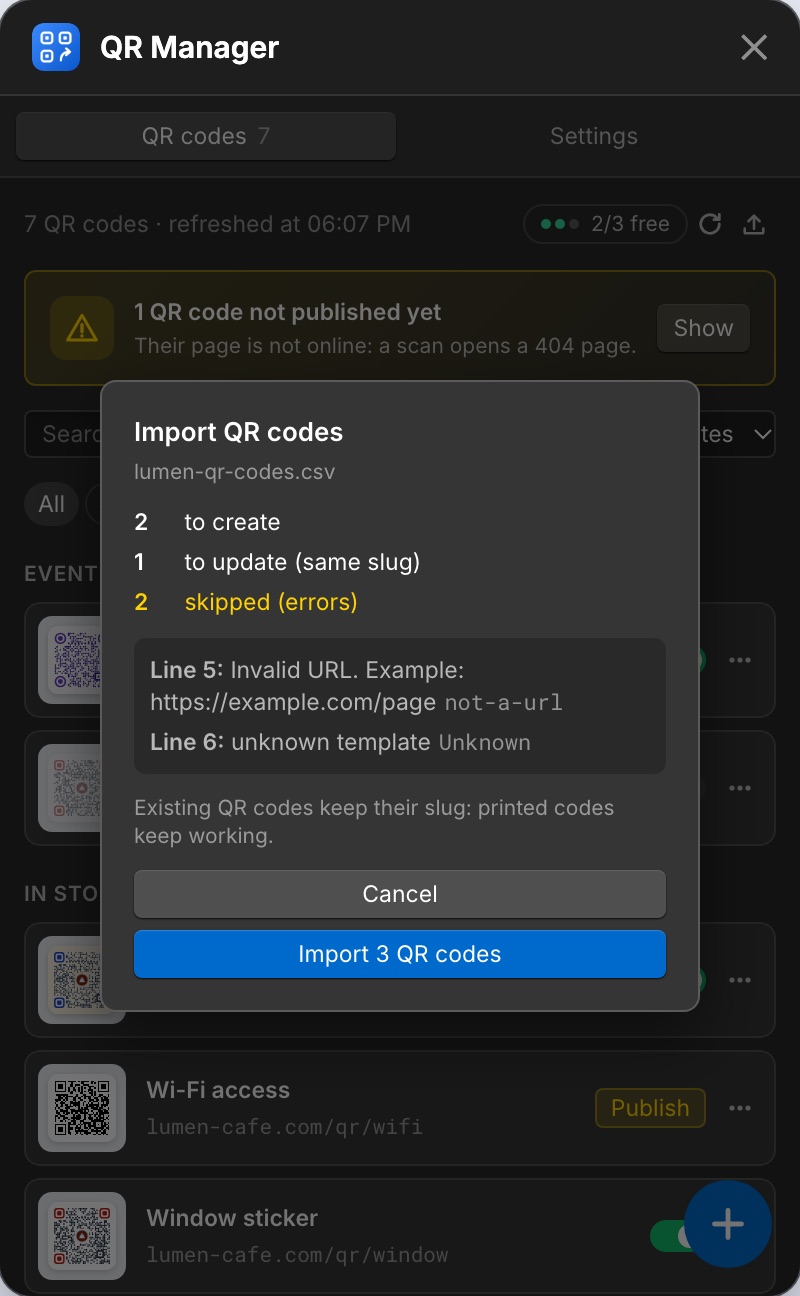
The upload icon at the top of the QR codes list opens Export as CSV and Import a CSV.
Export
Downloads every code, archived ones included, in a file that opens in Excel, Numbers or Google Sheets.
Import
- Start from an export, or a file with at least the
nameanddestination_urlcolumns. - Pick the file. The app shows how many codes will be created, updated or skipped, with the reason for each error.
- Click Import. Codes are saved and published one by one, with a progress bar.
| Column | Content |
|---|---|
name | Required. |
destination_url | Required. Full URL starting with https://. |
slug | Optional (built from the name). A slug that already exists updates that code. |
active | Optional: true / false (also yes / no, 1 / 0). Empty keeps the current state. |
template | Optional: name of a template of the site. Empty keeps the current style. |
destination_fr, destination_de… | Multilingual sites: specific URL for that language. Empty follows the main destination. |
Other columns of the export (archived, draft, qr_url) are ignored on import. Commas and semicolons are both accepted as separators. Archived codes are not changed by an import: restore them first.
9. Multilingual sites
With Webflow Localization:
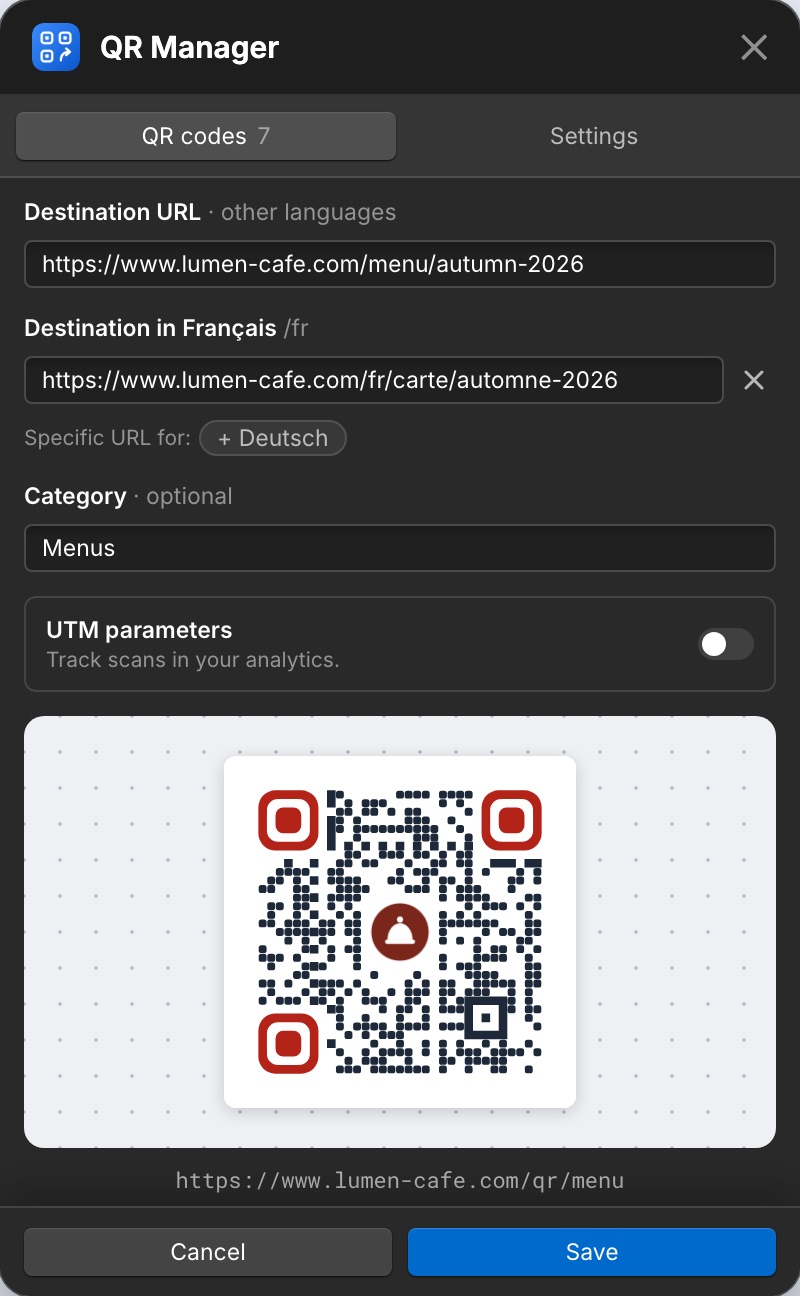
- Each code is created, published and deleted in every language of the site. The printed code encodes the main language address.
- Every language uses the same destination by default. Specific URL for: + language under the destination adds one for a language; remove it to follow the main one again.
- Visitors are first sent to the page in their language (using your
hreflanglinks or language folders), then to that language's destination. - Texts of the redirect page you did not translate are translated as the page loads (7 languages). Your own translations are kept.
- Added a language later? Click Create in every language in the list, then Settings → Collection and redirect → Update the design, and publish.
- The page structure can only be changed on the site's main language; the app greys out those buttons elsewhere.
10. Free plan, Premium and Premium Team
- Free: 3 new QR codes per account over a rolling 24 hours, with every feature. Editing, pausing, archiving and downloading existing codes is never limited.
- Premium: 79 € per year (4 months free) or 10 € per month, unlimited QR codes and advanced statistics on every site of your account. It supports the development of the app.
- Premium Team: 349 € per year or 39 € per month. All of Premium, and unlimited members on your sites: in the customer area or the app, Sites → Members, invite someone by email as admin (site settings, templates, members) or editor (QR codes and statistics). They sign in with that address and create under your subscription.
- The list header shows your usage (Free · 1/3). When the limit is reached, the app tells you when the next free code is possible.
- Duplicates and codes created by a CSV import count as new codes.
- Access code: if you received a code (QRM-XXXX-XXXX), enter it in Settings → Subscription → I have an access code. Your account gets Premium for life, with no subscription.
Subscribe, manage, cancel
- Settings → Subscription → Go Premium opens a secure Stripe payment page in a new tab.
- Back in the Designer, the app switches to Premium by itself within a few seconds.
- Manage subscription opens the Stripe portal: invoices, payment method, cancellation. After cancelling, Premium stays active until the end of the paid period.
11. What the app adds to your site
- A CMS collection QR Codes (slug
qr) with the fields Name, Slug, Destination URL, QR image and Active. Each code is one item. - On its template page, editable in the Designer: a centered card with a loading state, a Continue button, an “inactive” message. The redirect script is installed in the head of that page only, through the Webflow Custom Code API (visible in the page settings); on sites authorized before this version, it sits in a Code Embed on the page. It redirects to the destination and sends an anonymous signal for the scan counter.
- Classes prefixed
qrm-(qrm-page,qrm-card,qrm-button…). Restyle them freely: rebuilding never overwrites an existing class. - QR images are stored in the CMS item as SVG. The upload goes through a temporary asset deleted right after, so your Assets panel stays clean.
12. Permissions
| Scope | Why |
|---|---|
cms:read, cms:write | Create the collection and manage QR code items in every language. |
assets:read, assets:write | Temporary upload of the QR image, deleted right after. Your other assets are never read. |
sites:read | Site name, languages and last publish date (setup assistant). |
authorized_user:read | Check who is using the app in the Designer, and link your sites to your QR Manager account. |
custom_code:read, custom_code:write | Install the redirect script (and remove it on disconnect). |
pages:read, pages:write | Apply that script to the QR Codes template page only. No other page is changed. |
13. Disconnect and uninstall
- Settings → Connection → Disconnect the site removes the site from your QR Manager account, deletes what the app stores for it (shared templates, logos, settings and scan statistics) and removes the redirect script from the template page (effective at the next publish). The app stays installed: Reconnect the site brings it back in one click.
- To remove the app's access to the site, uninstall it in Webflow (Site settings → Apps & Integrations). Webflow then revokes the authorization and removes the script the app applied (at the next publish), and the app deletes its stored data for the site.
- Your codes stay in your CMS. Without the script, their page shows the Continue button to the destination instead of redirecting by itself. To remove everything, delete the QR Codes collection and the
qrm-classes; printed codes will then stop working.
14. Troubleshooting and FAQ
A code opens a 404 page
Publish your site, then check in Settings → Collection and redirect that the template page is ready. If the code was archived, restore it. On a multilingual site, click Create in every language if the list offers it.
“The Designer does not see the collection's page yet”
A collection created by the app only shows up after the Designer reloads. Reload it (Cmd + R or Ctrl + R) and open QR Manager again: the assistant resumes where it was.
A permission error when building the page
Switch the Designer to the site's main language and to Design mode, with a role allowed to change the design.
“Can't reach QR Manager”
Check your connection and try again. Printed codes are not affected: redirects never go through our servers.
Do printed codes depend on QR Manager?
No. Your Webflow site does the redirect. The app is only used while you edit codes.
Will styled codes scan?
Every combination offered by the app is decoded by standard readers in our tests. Keep a strong contrast and test a print.
Can I use the app on several sites?
Yes. Each site has its own collection, templates and authorization.
Still stuck? See Support & contact.